HOW TO INSTALL A WORDPRESS THEME
This tutorial is actually not required as when you log in to your WordPress dashboard then you will automatically understand the steps on how to install the WordPress themes.
But initially, you may face problems installing a new WordPress theme. So to clarify the doubts here go the steps from installation to deletion of a particular WordPress theme.
As new blogger, we keep on trying new themes to see which suits our blog feel.
As most of the WordPress themes are free, so we naturally overcrowd our themes folder.
Delete the unused themes which you feel you will never use again, as it affects the site speed.
As a newbie, I had a problem deleting the themes as nowhere I could find any options to do so.
So here goes the short tutorial.
HOW TO INSTALL WORDPRESS THEMES FROM DASHBOARD
In general, the twenty-fourteen theme is the default theme set by WordPress.
But according to our needs, we set our themes.
1. Go to Dashboard> Appearance > Themes

2. On top of the screen, you can find the ‘Add New’ option.

3. On clicking on add new you will be given several options to choose from.

You can choose from featured, latest or popular themes.
One of the things which makes my work easier is the Feature Filter.

As you can see here that you can easily choose the features which you want for your blog.
As for me, I like my feature image to be displayed. I need my right sidebar to put my affiliate stuff and so on.
So according to your need, you can get the suggested themes.
4. Click on the WordPress theme you choose to install.
For example, am choosing the theme ‘mesmerize’.
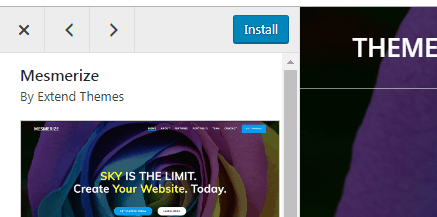
Click on the Install Button.
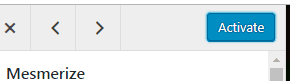
Now Activate it.
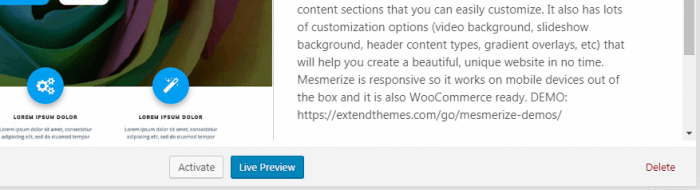
You can also check the live preview and if you like it then activate the theme.

If you simply activate the theme after installing it, then you will lose the customizations made to the previous theme. So, it is always better to check with the live preview as the theme may not be exactly the way you want it to be.
And then activate and publish.

HOW TO UPLOAD A WORDPRESS THEME USING. ZIP FOLDER FORMAT
We generally get the .zip format themes package when we install themes from any external site. It mostly happens with premium WordPress themes.
For example, am downloading a theme from wordpress.org/themes.
Here I get the option to download.

Once you have downloaded the theme:
Now go to dashboard> appearance> themes> add new> upload theme
Now choose your downloaded .zip folder file.
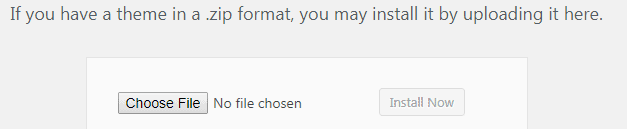
Next > Install Now
Now you can see the live preview like the previous one or you can directly activate it.

HOW TO DELETE/UNINSTALL WORDPRESS THEME
This is a step where I struggled in my initial days as my themes were getting overcrowded and I could not get any option to delete it.
Now out of so many themes, simply click on the theme which you want to delete.

And here you go with the delete option on the right bottom of the page.
That’s it. That is how to install or delete a particular WordPress theme.
Other WordPress-related posts:
9 steps to take for a newbie to have a Pro Blogger look
How to start a blog to make money
Difference between wordpress.com and wordpress.org (Details Included)